If you do not have Exchange online account with Office 365 subscription of IITK and want to conduct
meeting occasionally, Please click me.
1. Requirement for using MS Teams
- To schedule a meeting on MS Teams, an account on MS Exchange is required. If you do not have an MS Exchange account under IIT Kanpur's subscription, see Point-2 below.
2. Moving to MS Exchange
(If you already have an account on MS Exchange, ignore this step)
- You have the option to move your IIT Kanpur Email account username@iitk.ac.in to MS Exchange. Moving your account to IIT Kanpur email account to MS Exchange has some advantages and disadvantages. Click Here for details.
- If you would like to remain on IIT Kanpur Email service, then you will be provided with a new account on MS Exchange, which will be username@iitkacin.onmcrosoft.com.
- Use this form to send request for moving to MS Exchange with one of the above choices:Click Here
3. Schedule a Meeting
- Follow this link on how to schedule a meeting: Video
- Maximum participants per meeting is 300.
- If you prefer to schedule a webinar, contact gopesh@iitk.ac.in .
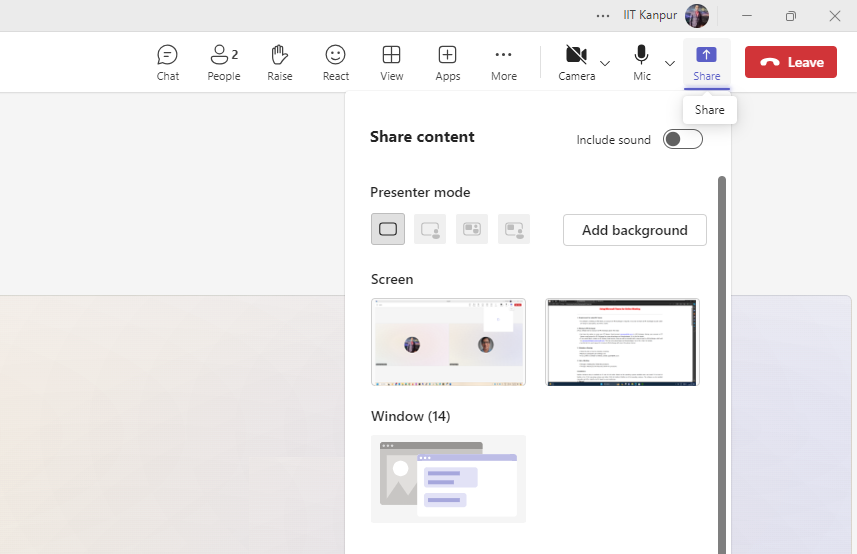
5. Screen Sharing
- Procedure
- Click Share icon at the top right cornor of MS Teams.
- Select Screen / Window / App that you want to show.
- Screen / Window / App what you are showing is surrounded by red border.
- Select Stop sharing to stop showing your screen.
6. Recording a Meeting
- Procedure
- Start or join the meeting.
- To start recording in MS Teams, select More actions >
Record and transcribe > Start recording.
Everyone in the meeting will be notified that recording and transcription have started. - To stop recording in MS Teams, select More actions >
Record and transcribe > Stop recording.
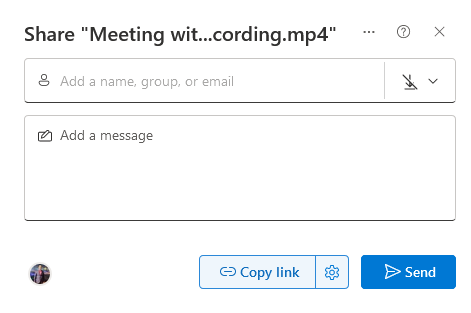
- Sharing MS Teams recording (Video).
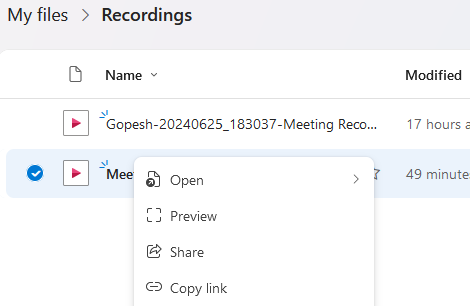
- All MS Teams recording are saved in Recording folder under Meeting Organizer's OneDrive
- To share the recording, go to recordings folder in OneDrive.
- Right click on the file and select Share.
You can explore MS Teams tutorial and informational videos here.